
What you are creating when you record a sale
A sale in Skyline Nexus is one row in the transactions table with a type of sell, plus a set of sell lines, plus zero or more payment records. Those three things are separate on purpose. The invoice is the claim on the customer. The lines are what left the shelf. The payments are the money that arrived. Most of the confusion people have with sales in an ERP comes from treating those three as one event, because at a shop counter they usually happen in the same second.
They are not the same event for accounting. The invoice creates revenue and a receivable. The lines relieve inventory and create cost of sales. The payment settles the receivable and moves cash. If you sell on credit, the payment happens weeks later and the receivable sits on the balance sheet in between. If you take a deposit, the money arrives before the invoice exists. The system models all of those because they all happen in real businesses.
So the practical question when you record a sale is not just which buttons to press. It is: which of those three things am I creating right now, and which am I deliberately not creating yet? The answer is decided almost entirely by one field on the form, which is the Status field, covered further down.
Three doors into the same document
The left menu has a dropdown labelled Sale. Under it you will find several entries that all end up writing the same kind of document, differing only in how much of the form they show you and how fast they are to complete.
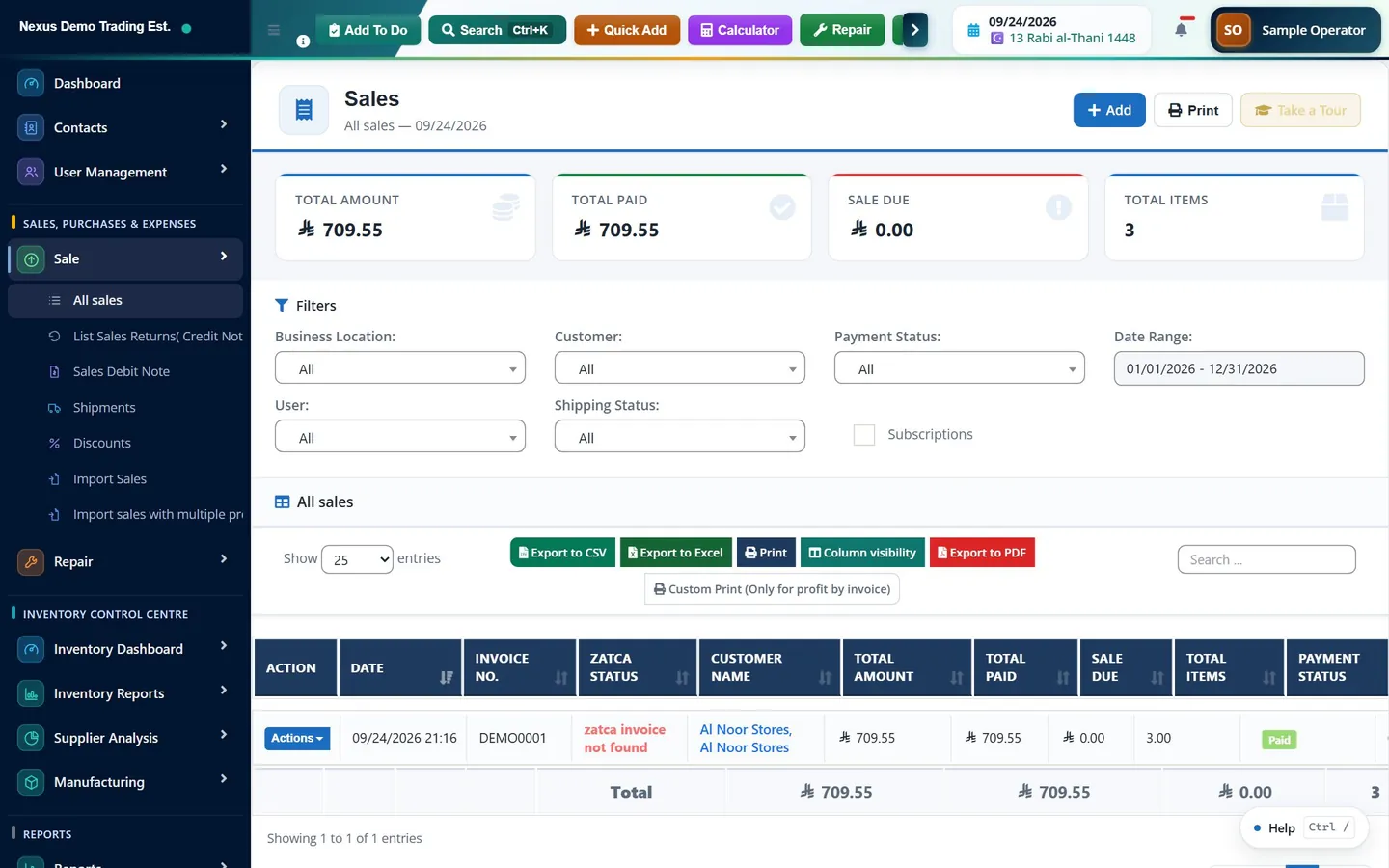
The finished documents are listed under All sales (/sells) regardless of which door you used. Drafts and quotations have their own lists, List Drafts (/sells/drafts) and List quotations (/sells/quotations), because they are not yet real invoices and should not clutter the sales list. Point-of-sale receipts also appear on their own under List POS (/pos).
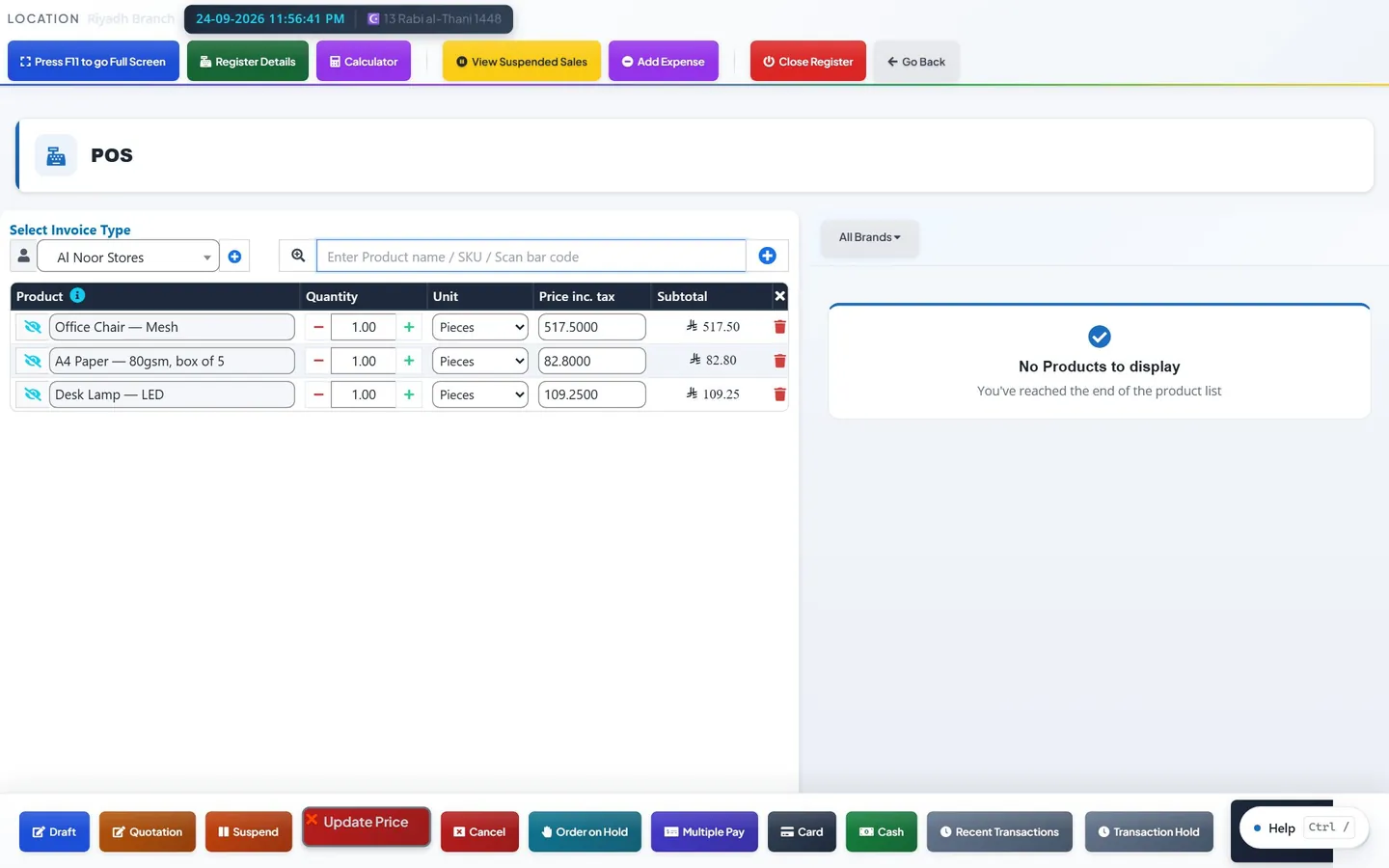
One implementation detail that is worth knowing because it explains some behaviour: the Add Sale form submits to the same controller as the POS screen. They are two front ends over one save routine. That is why the tax rules, the stock rules and the ledger posting are identical no matter which screen you started from, and it is why you should not expect a POS receipt and an Add Sale invoice to be treated differently by the accounts.
- POS (/pos/create) is the touch-first counter screen. One customer, a product grid, a payment panel, done in a few seconds. It is the right door for retail, restaurant and any over-the-counter trade.
- Add Sale (/sells/create) is the full invoice form. Every field is visible: invoice scheme, currency, pay term, shipping, custom fields, multiple payment rows. It is the right door for a B2B invoice, a delivery-based sale, or anything with credit terms.
- Direct Sale (/sells/direct/create) is a shortened version of Add Sale for straightforward invoices.
- Add Draft (/sells/create?status=draft) and Add Quotation (/sells/create?status=quotation) are the same form again, opened with the status pre-set so you cannot finalise by accident.
- Add Sales Order (/sells/create?sale_type=sales_order) records a customer order that will be invoiced later. It only appears when sales orders are switched on in the POS settings.
Filling in the Add Sale screen
The first card is Sale Details. Select location is required and is not cosmetic: it decides which stock the sale draws down, which invoice numbering sequence is used, which payment accounts are offered, and, if you are filing e-invoices, whether the sale is filed at all, because e-invoicing is enabled per location. Invoice scheme controls the number the invoice gets. Sale Date is the accounting date of the document and defaults to now. Invoice Currency and Exchange Rate to SAR appear only when foreign-currency selling is configured.
Invoice No. is deliberately hard to reach. It only renders for users who hold the permission to edit invoice numbers, and only while the document is a draft, with the help text Keep blank to auto generate. That is the correct design. An invoice number that a cashier can type over is not a sequence, and a broken sequence is the first thing a tax auditor notices.
The Customer card takes the contact and the Pay term, entered as a number plus a unit of Months or Days. There is no separate due-date field on this screen: the due date is derived from the pay term, and if you leave it blank the customer's own default pay term is used. That is why setting pay terms on the customer record rather than on each invoice is worth the five minutes.
Status decides almost everything
The Status field on Add Sale offers Final, Draft, Quotation and Proforma. It is the single most consequential field on the form, because nearly every downstream behaviour is gated on it.
There is one deliberate exception to the draft rule, and it is worth knowing before it surprises you. A business setting under the POS settings, labelled Deduct stock for draft invoices, makes pure drafts reduce stock at save time and count in the sales, profit, cost-of-sales and cash-flow reports exactly like a finished cash sale. It is off by default and the help text in the product says so plainly. Turn it on only if you genuinely use drafts as picking documents, and understand that you have then made drafts financially real.
The practical rule: if the goods have gone and the customer owes you, the status is Final. Anything else, and you are recording an intention, not a transaction. Do not use Draft as a way of avoiding a mistake you are worried about, because a draft that never gets finalised is a sale that never appears anywhere.
- Final is a real invoice. It reduces stock, it accepts payment, it is eligible for posting to the general ledger, and where e-invoicing is active it is filed with the tax authority.
- Draft is a work in progress. It does not post to the ledger and it will not accept a payment: the save routine refuses to write payment records for a sale whose status is draft, quotation or proforma. By default it does not touch stock either.
- Quotation is an offer. Nothing moves. No stock, no ledger, no payment.
- Proforma is a pre-invoice document. Like a quotation, it moves nothing.
How tax is calculated on a sale
Tax can enter a sale at two levels, and the difference matters. Line tax is a tax rate attached to an individual product row. Order tax is a single rate applied to the document as a whole, chosen in the Order Tax field beneath the product grid. Most businesses use one or the other. Using both on the same document is where people get into trouble elsewhere, and Skyline Nexus is built to stop that specific error.
The order tax is levied on a base that excludes lines which already carry their own line tax. A line whose own rate equals the header rate contributes nothing to the header tax base. In plain terms: the system will not charge VAT on top of VAT, and it will not double-charge a line that is already taxed at the document rate. This is a calculation rule in the invoice-total routine, not a setting you have to remember to tick.
Whether a price is quoted inclusive or exclusive of tax is a property of the product, not of the invoice. On the product form there is a field called Selling Price Tax Type with the options Inclusive and Exclusive. The line then stores both figures, the unit price before tax and the unit price including tax, so the invoice can display either without recalculating. The per-row tax selector on the sale form only appears if inline tax is switched on for the business; if it is off, tax comes from the product and from the order tax field.
Rounding is a business setting rather than a per-invoice decision. The default is to sum at full precision and round the invoice once at the end, rather than rounding each line and summing the rounded figures. The two methods differ by a few units of the minor currency on a long invoice, which is immaterial to a customer and very material to a VAT return that has to reconcile to the ledger.
The payment is a separate record from the invoice
The Add Payment card at the bottom of the form is optional. Each payment row asks for Amount, Paid on, Payment Method and Payment Account, plus an optional Payment note. Add Payment Row lets you split one invoice across several tenders, which is what you want when a customer pays part in cash and part by card. Under the rows you get Total Payable, Total Paying, Change Return and Balance.
If the sale is on credit, tick Credit sale, full amount due. That zeroes the payment amount, hides the payment rows and tells the save routine to skip creating payment records entirely. The invoice is issued, the receivable stands, and the money is collected later. This is the correct way to record a credit sale; entering a zero-value payment row is not.
The payment status on the document is derived, not typed. It is paid when the total received is at least the invoice total, partial when something has been received but not everything, and due when nothing has. That derivation runs again every time a payment is added, edited or deleted, which is why you should collect later payments through Add Payment on the sales list (/payments/add_payment/{id}) rather than by editing the invoice. Editing the invoice to make the numbers agree is the wrong instinct and is covered in the guide on cancelling and correcting transactions.
What the sale does to stock
When a sale is saved as Final, each line reduces the available quantity of that product variation at that business location. Products that are not stock-tracked are skipped: the decrement routine does nothing for a product whose stock management is switched off, which is how you sell services and labour through the same screen without generating negative inventory.
A second step then runs that people rarely see and should know about. Each quantity sold is allocated against the specific purchase lines it came from, and that allocation is stored. That mapping is what makes cost of sales real rather than estimated: the system knows which purchase at which cost supplied which sale. It is also what enforces batch and expiry rules, and what lets the software refuse an oversell where over-selling is not permitted.
Because that allocation is built at the moment of the sale, a sale recorded weeks late against stock that has since moved will allocate differently than it would have at the time. That is not a bug, it is arithmetic, and it is the strongest practical argument for recording sales on the day they happen.
What posts to the general ledger
A final sale raises an internal event, and the accounting module listens for it. If everything is configured, that listener writes a journal entry. The entry debits the accounts receivable control account with the full invoice total, credits revenue with the net amount, and credits VAT output with the tax. Revenue is split by product category where categories have their own revenue accounts, so a business selling both goods and services can see them separately in the income statement without any manual analysis.
Three conditions must all hold or nothing posts, and it is worth checking all three before concluding that the ledger is broken. First, the sale must be Final. Drafts, quotations and proformas are skipped by design. Second, the business must have Auto-post Sales Transactions switched on in the accounting settings at /accounting/settings. Third, the accounts must be mapped: a receivable account, a revenue account and a VAT output account, configured at /accounting/settings/mapping. A missing mapping does not corrupt anything, it simply refuses to post.
There is a fourth gate that catches people at month end: the fiscal period covering the sale date must be open. If the period has been closed or locked, the posting is rejected rather than silently backdated into a closed month. That is the correct behaviour and it is the whole point of closing a period, but it does mean that a sale dated into a locked month needs the period reopening or the date correcting before it will reach the ledger.
E-invoicing, where it applies
In Saudi Arabia the e-invoicing module generates and files the invoice automatically when a sale is saved as Final. It is enabled per business location rather than for the whole business, so a company can run one location under the e-invoicing regime while another is not yet enrolled. Configuration lives at /zatca/configuration.
Filing is idempotent: the system records what has already been filed and will not file the same invoice twice. If a filing fails, the sale is still saved. That is a deliberate choice, because losing a sale because a tax authority endpoint was unreachable would be far worse than filing it a few minutes late. A failed filing can be re-sent from the sale itself.
Once an invoice has been filed, it is locked against editing. The message the system gives is explicit: the invoice has already been filed and can no longer be edited, and to correct it you must issue a credit note or a debit note. This is not the software being awkward. A filed invoice is a document the tax authority now holds, and the only lawful way to change it is with another document.
After you save
The sale appears in All sales with its invoice number, customer, total, payment status and, where relevant, its e-invoice status. From the row menu you can view it, print it, add a payment, view its payments, or start a return against it. The detail view at /sells/show/{id} shows the lines, the tax breakdown and the payment history in one place, which is the screen to open when someone asks you what happened on a particular invoice.
The customer's balance is recalculated after the sale, so the receivable is immediately visible in the customer ledger and in the receivables ageing. If the ledger posting is enabled and configured, the same figures also appear in the trial balance and balance sheet through the accounting module. If the two do not agree, the usual cause is one of the three posting gates above rather than an arithmetic error.
A short checklist
- Is the location right? It decides stock, numbering, payment accounts and e-invoicing.
- Is the status Final? Anything else is not a sale yet.
- Is the sale date the date the sale actually happened, not the date you are typing it?
- If the customer has not paid, is Credit sale, full amount due ticked, rather than a zero payment row?
- If it is a credit sale, is the pay term set so the invoice ages correctly?
- Do the tax figures look right on the totals strip before you save, not after?
Common questions
What is the difference between a draft and a quotation on a sale?
A quotation is an offer to a customer and moves nothing: no stock, no ledger entry, no payment. A draft is an unfinished invoice, which also does not post to the ledger and will not accept a payment. The one difference in practice is that a business setting called Deduct stock for draft invoices can make drafts reduce stock and count in the sales and profit reports, whereas quotations never do.
Why can I not add a payment to my sale?
Payments are only accepted on a sale whose status is Final. The save routine refuses to write payment records for a draft, quotation or proforma, because those documents are not receivables. Change the status to Final and the payment section becomes available.
Does a sale post to the general ledger automatically?
Only if three conditions hold: the sale is Final, Auto-post Sales Transactions is switched on in the accounting settings, and the receivable, revenue and VAT output accounts are mapped. There is also a fourth gate at month end, which is that the fiscal period covering the sale date must be open. If any of these is missing the sale is still saved correctly, it simply does not reach the ledger.
How is tax calculated if a product already has a tax rate?
The order tax is applied to a base that excludes lines which already carry their own tax, and a line whose rate matches the document rate contributes nothing to the document tax base. That means tax is never charged on top of tax and a line is never taxed twice at the same rate. Whether a price is quoted inclusive or exclusive of tax is set on the product, in the Selling Price Tax Type field.
Can I edit an invoice after it has been filed for e-invoicing?
No. Once an invoice has been filed it is locked against editing, and the system says so explicitly. The correct way to change it is to issue a credit note or a debit note against it, which is the only lawful correction for a document the tax authority already holds.
This guide is general information, not tax, accounting or legal advice. Rules differ from country to country and change over time; confirm the current position with your tax authority or a qualified adviser before acting on anything here.
Ready to run your operation on a single workspace?