
A purchase is three facts, not one
When a supplier sends goods and an invoice, three separate facts arise. You have committed to buy something. You have received something. You owe someone money. In a small business these arrive together and get recorded as one act. In any business with lead times they arrive days or weeks apart, and an accounting system that cannot keep them apart will either overstate stock you do not have or understate liabilities you do.
Skyline Nexus keeps them apart through a single field on the purchase form, the Purchase Status. That field carries more weight than anything else on the screen: it decides whether stock moves, whether a payment can be taken, and whether the ledger sees a liability.
Everything else on the Add Purchase form, and there is a lot of it, is detail hung off those three facts. Get the status right and the rest is data entry. Get the status wrong and you have either invented inventory or hidden a payable.
Where the purchase screens are
The left menu has a Purchases dropdown. The entries you will use most are List Purchases (/purchases) and Add Purchase (/purchases/create). Alongside them sit List Purchase Return (/purchase-return), Purchase Return (Debit Note) (/purchase-return/create) and Purchase Debit Note (/purchase-debit-note).
Two further entries appear only when the corresponding settings are enabled: Purchase Requisition and Purchase Order, with Add Purchase Order alongside it. If your process involves raising an order before the goods arrive, use the purchase order screen for it. Raising the order as a purchase with a status of Ordered is possible but it is the less clean route, because a purchase document is designed to become a bill and an order is not one.
Suppliers are contacts. They are created and listed under the Contacts dropdown, filtered to Supplier, and you can also create one without leaving the purchase form using the add button next to the supplier selector.
Supplier balances and ageing live in a separate section of the menu, Supplier Financial Centre, which contains Supplier Ledger, an accounts payable report and a supplier ageing report. Those are the screens to open when the question is how much do we owe, rather than what did we buy.
The Add Purchase form
The first card is Purchase Details. Supplier and Business Location are required. Reference No. can be left blank to auto-generate, and is where the supplier's own invoice number belongs if you want to find the document by it later. Purchase Date is the accounting date. Attach Document lets you store the supplier's PDF against the record, which is the single highest-value habit in the whole purchasing process, because a purchase without its supporting document is an assertion rather than evidence.
Pay term is entered as a number plus Months or Days and drives when the bill falls due in the ageing. Where foreign-currency purchasing is configured you also get a currency selector and a Currency Exchange Rate field, which appears once a foreign currency is chosen.
The Items table is where the money is. Its columns are Product Name, Purchase Quantity, Unit Cost (Before Discount), Discount Percent, Unit Cost (Before Tax), Subtotal (Before Tax), Product Tax, Net Cost and Line Total, with Unit Selling Price at the end so you can set the sell price at the point of buying. The three tax columns are only shown when inline tax is enabled for the business; with it off, the grid is shorter and tax is handled at document level instead.
Received, Pending and Ordered
The Purchase Status field offers Received, Pending, Ordered, Cancelled and Partial. Only Received increases stock. The code that writes purchase lines increases the quantity available at the location only when the status is Received; every other status writes the document and leaves inventory untouched.
The same rule governs money. Payment can only be recorded once the purchase status is Received, and if you try otherwise the system tells you why in as many words: an ordered or pending purchase is a commitment, not a bill. The payment card on the form is hidden until the status is Received. This is a genuinely useful constraint, because paying against an order you have not received is how prepayments end up misclassified as purchases.
If you later change a purchase from Received to something else, the stock that was added is taken back out. The reverse is also handled: moving a purchase to Received adds the stock at that point. What you should not do is edit the status casually on a purchase that has already been paid or returned, for the reasons set out in the guide on cancelling and correcting transactions.
- Received: stock increases, the bill exists, payment can be recorded, the ledger can post.
- Ordered: a commitment. No stock, no payment, no ledger entry.
- Pending: goods expected but not in. No stock, no payment.
- Partial: some of the order has arrived, tracked as such.
- Cancelled: the document remains for the audit trail but nothing moves.
Input tax
Each product row carries its own tax selector, which defaults from the tax rate set on the product. The system stores both the ex-tax unit cost and the tax-inclusive unit cost on the line, along with the tax rate that was applied. That is what makes an input-tax report possible later without re-deriving anything: the tax is a stored fact about the line, not a calculation performed at reporting time.
The Unit Cost (Before Tax) and Net Cost columns work in both directions. Type an ex-tax cost and the system grosses it up. Type a tax-inclusive cost, which is what a supplier invoice usually shows, and it works backwards to the net. Tax groups with several component rates are handled as a group.
There is also a document-level Purchase Tax, in a collapsible section of the same name. Note that it is deliberately not pre-selected from the business default: leaving it blank is the intended state for most purchases, because the tax has normally already been captured on the lines. Where it is used, it applies only to the net value of lines that do not carry their own tax, which prevents the same double-taxation problem the sales side avoids. Whatever is entered on screen is recomputed on the server before saving, and a mismatch is rejected rather than accepted.
Freight and shipping have their own input tax field, labelled Purchase freight and expenses input VAT, in the Shipping Details section alongside Additional Shipping charges. Keeping freight tax separate from goods tax matters for any business that reclaims input tax, because the two are not always recoverable on the same basis.
Discounts, shipping and other costs
Discounts exist at two levels. Each line has a Discount Percent applied to the unit cost before tax. The document has a Discount card with a Discount Type of Fixed or Percentage and a Discount Amount. Line discounts are the more useful of the two because they flow into the unit cost that becomes your inventory valuation; a document-level discount does not tell you which item got cheaper.
The Shipping Details section holds a free-text description, the additional shipping charge, its input tax, and a button labelled Add additional expenses that reveals four name and amount pairs for anything else that arrived on the invoice. Those are stored against the purchase, so the total cost of acquiring the goods is on one document rather than scattered across the expense ledger.
For imports there is a fuller landed-cost treatment that distributes duty, import VAT, excise and freight across the lines, but it only runs on purchases marked as imports through the trade section of the form. For a domestic purchase, the additional-expense fields are the mechanism.
Payables and paying the supplier
A saved purchase starts as due. The payment status is derived from what has been paid against it: paid once the amount received covers the total, partial while something but not everything has been paid, and due otherwise. It is recalculated every time a payment changes, so you should never set it by hand and there is no field to do so.
Payments can be entered on the purchase form itself, in the Add Payment card, with the usual Paid on, Amount, Payment Method, Payment Account and Payment note fields. They can also be added later from the purchase list, where the row menu offers Add Payment and View Payments. The Add Payment action only appears when the purchase is Received and not already fully paid, which is the same rule as before, enforced in a second place.
There is also a payment source selector on the form, distinguishing a purchase paid by the company from one paid personally by an employee or from a cash advance. That choice changes which account is credited in the ledger, so it is not cosmetic: a purchase paid personally creates a payable to the employee, not to the supplier.
To settle several bills at once, or to record a payment on account, use the contact-level payment route rather than opening each purchase. The supplier's running position is on the Supplier Ledger screen under Supplier Financial Centre.
What posts to the general ledger
A received purchase raises an event that the accounting module listens for. The journal entry debits inventory or purchase expense with the net value of the lines, debits VAT input with the tax, and credits accounts payable with the total. Where product categories have their own cost accounts, the debit is split by category, so a purchase covering several categories lands in several expense or inventory accounts without manual analysis.
The gates are the same three as on the sales side, plus the status rule. The purchase must be Received. Auto-post Purchase Transactions must be switched on in the accounting settings. The accounts must be mapped, under the Purchase Mapping and Inventory sections at /accounting/settings/mapping. And the fiscal period covering the purchase date must be open.
If the purchase was paid personally or from a cash advance rather than by the company, the credit goes to the employee payable or advance account instead of trade payables. That is the ledger correctly reflecting who is actually owed the money.
Purchase returns
There are two routes. From an existing purchase, you can raise a return against it, which caps the returned quantity at what was purchased, reduces stock by the returned amount, and derives the tax on the return from the parent document rather than recalculating it. That is the route to use when goods actually go back to a supplier.
The second route is the standalone Purchase Return (Debit Note) screen, for a supplier credit that does not map cleanly to one original purchase. It also reduces stock and creates its own document.
In the ledger, a return debits the same control account the purchase credited and credits inventory and input tax, which is the reversal you would expect. A return against a purchase that never reached Received posts nothing, because there was nothing posted to reverse.
Editing and deleting a purchase
A purchase can be edited from the purchase list, subject to permission and to the same time limit that governs sales, a business setting called Transaction Edit Days. If a return has already been raised against the purchase, editing is refused and you are told to edit the return instead, because the return was calculated from the parent and changing the parent underneath it would leave the two inconsistent.
Deleting is more thorough than it looks. Before the document goes, every payment attached to it is reversed and its ledger entry undone, the stock that a received purchase added is taken back out, the purchase lines are removed, and the allocation between those purchase lines and any sales that drew on them is rebuilt. If the goods have already been sold from a specific lot, the deletion is refused rather than silently orphaning the sale.
The general rule is the same as on the sales side. Editing is for a document that has not yet done anything, or for a small correction inside the edit window. Anything that has been paid, returned or reported is corrected with a return or a debit note, so the change is a document with a date and a reason rather than a quiet amendment. There is a fuller treatment of this in the guide on cancelling and correcting transactions.
Where to check that the purchase landed correctly
Four screens between them answer every question you might have after saving a purchase, and knowing which one to open saves a lot of hunting.
If you also run the accounting module, the general ledger for the payables control account should show the purchase as a credit with the reference number attached. If the purchase is in the purchase list but not in the ledger, the cause is one of the posting gates rather than a lost document, and the guide on running a trial balance explains how to confirm that.
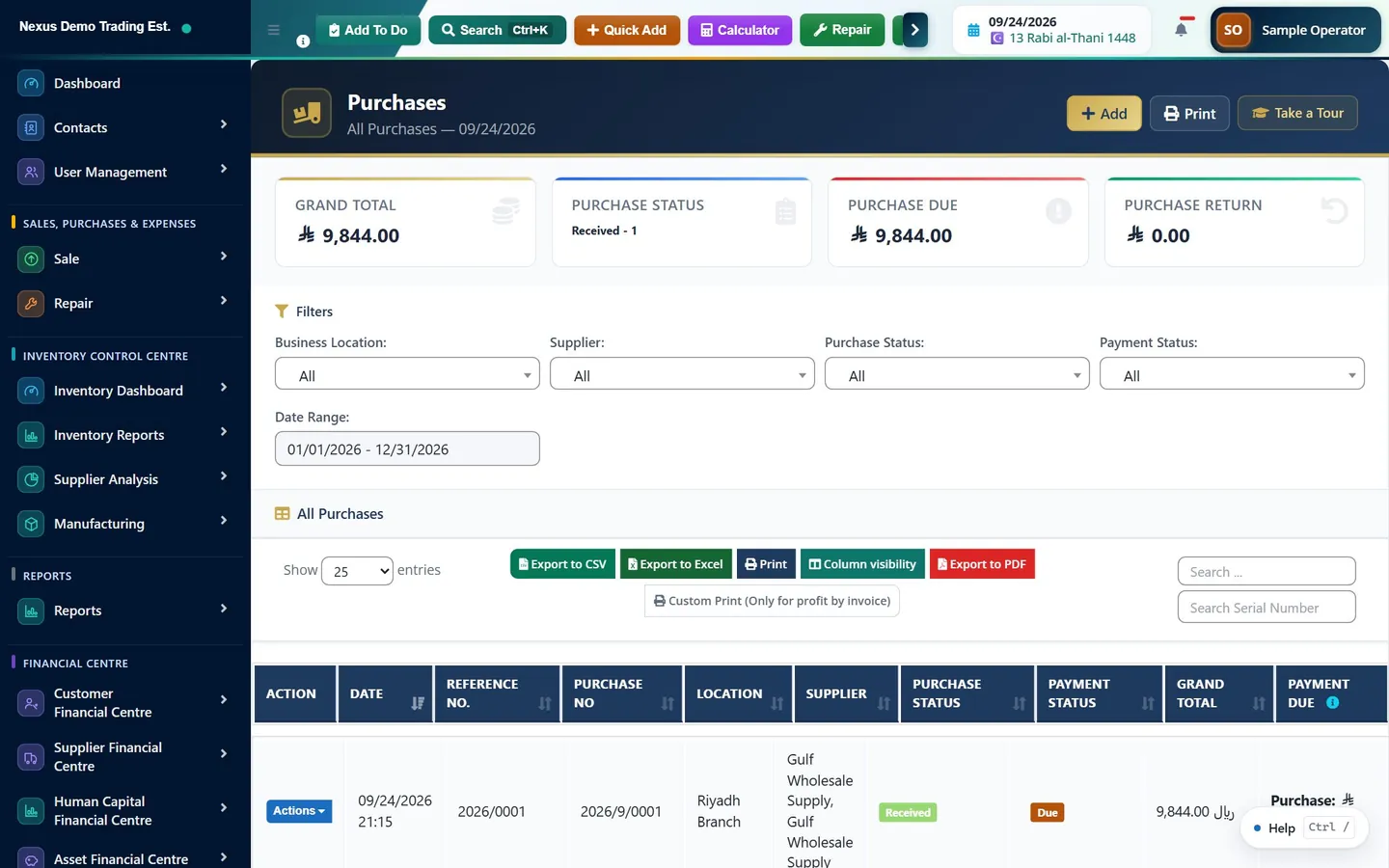
- List Purchases (/purchases) shows the document with its reference, supplier, status, total and payment status. It is the fastest check that the purchase exists and is Received.
- Supplier Ledger, under Supplier Financial Centre, shows the supplier's running position: what was billed, what was paid, what remains.
- The accounts payable and supplier ageing reports, in the same section, show the same information organised by how overdue it is, which is the view to use when deciding what to pay this week.
- The stock reports show whether the goods actually arrived in inventory, which is the check that catches a purchase saved as Pending by mistake.
A short checklist
- Is the status Received? If the goods are not in, it should not be.
- Is the supplier's own invoice number in Reference No. so you can find it again?
- Is the supplier's document attached?
- Do the line costs match the invoice, tax inclusive or exclusive as the supplier states them?
- Is freight entered as a shipping charge with its own input tax, rather than smeared into a line cost?
- Is the payment source right: company, personal, or cash advance?
- Is the pay term set so the bill ages correctly in the payables report?
- Did the stock actually move? If not, the status was probably not Received.
Common questions
Why can I not record a payment against my purchase?
Payment is only accepted once the purchase status is Received. The system states the reason directly: an ordered or pending purchase is a commitment, not a bill. Set the status to Received when the goods arrive and the payment section becomes available.
Which purchase status increases stock?
Only Received. Pending, Ordered, Partial and Cancelled write the document but leave inventory untouched. If you later change a purchase away from Received, the stock that was added is taken back out again.
Should I enter tax on the lines or as a purchase tax on the document?
On the lines, in almost every case. Line tax is stored against the line along with the rate, which is what makes input tax reporting reliable. The document-level Purchase Tax field is deliberately left blank by default and, where used, applies only to lines that do not already carry their own tax.
How do I record freight and customs on a purchase?
Use the Shipping Details section, which has an additional shipping charge field with its own input VAT field, plus an Add additional expenses button that reveals four name and amount pairs for anything else on the supplier invoice. For imports there is a fuller landed-cost treatment that distributes duty and import VAT across the lines, but it only runs on purchases marked as imports.
What does a received purchase post to the ledger?
It debits inventory or purchase expense with the net value, debits VAT input with the tax, and credits accounts payable with the total. If the purchase was paid personally or from a cash advance, the credit goes to the employee payable or advance account instead. Posting requires that auto-posting is enabled, the accounts are mapped, and the fiscal period is open.
This guide is general information, not tax, accounting or legal advice. Rules differ from country to country and change over time; confirm the current position with your tax authority or a qualified adviser before acting on anything here.
Ready to run your operation on a single workspace?