
There are two screens called Trial Balance, and they are not the same
This is the first thing to establish, because it is the source of most confusion and no amount of correct clicking will help if you are on the wrong screen. Skyline Nexus carries two reports named Trial Balance and two named Balance Sheet, in different parts of the menu, computed from different data.
The first pair lives under the Payment Accounts section of the menu, at /account/trial-balance and /account/balance-sheet. These are quick operational summaries, inherited from the point-of-sale core. They show a handful of rows: supplier due, customer due, the balance of each payment account, and closing stock on the balance sheet. They are useful for a fast look at where the business stands and they are not a trial balance in the accounting sense, because there is no chart of accounts behind them.
The second pair lives under the Fiscal Authority section, at /accounting/reports/trial-balance and /accounting/reports/balance-sheet. These are the real ones. They read the double-entry ledger: the chart of accounts, the journal entries and their lines. Every account with a balance appears, classified as an asset, liability, equity, income or expense, with a debit and a credit column that are meant to agree.
If you are preparing financial statements, filing a return, or answering an auditor, you want the second pair. If you want to know how much cash is in the till and who owes you money, the first pair is quicker. Do not attempt to reconcile one to the other; they are answering different questions from different data.
Finding the reports
The accounting reports sit in the left menu under the section divider Fiscal Authority and Compliance (GL), in a dropdown labelled Fiscal Authority. Inside it, open Reports. The reports are grouped under headings, and the financial statements are under the first heading, Financial Statements.
Below that heading are the ledger reports, which are where you go when a figure needs explaining: General Ledger, Sub-Ledger, Day Book and Audit Trail. Further groups cover registers and ageing, tax and compliance, and budget analysis. Every report page also carries a horizontal bar of links to the others, so once you are on one you can move between them without returning to the menu.
The accounting module is optional. If you cannot see the Fiscal Authority section at all, it is because the module is not enabled for your business or your user does not hold the accounting permissions, not because the reports do not exist.
- Trial Balance, at /accounting/reports/trial-balance
- Income Statement, at /accounting/reports/profit-loss
- Balance Sheet, at /accounting/reports/balance-sheet
- Cash Flow, at /accounting/reports/cash-flow
- Changes in Equity, at /accounting/reports/statement-of-changes-in-equity
The trial balance filters, and what each one changes
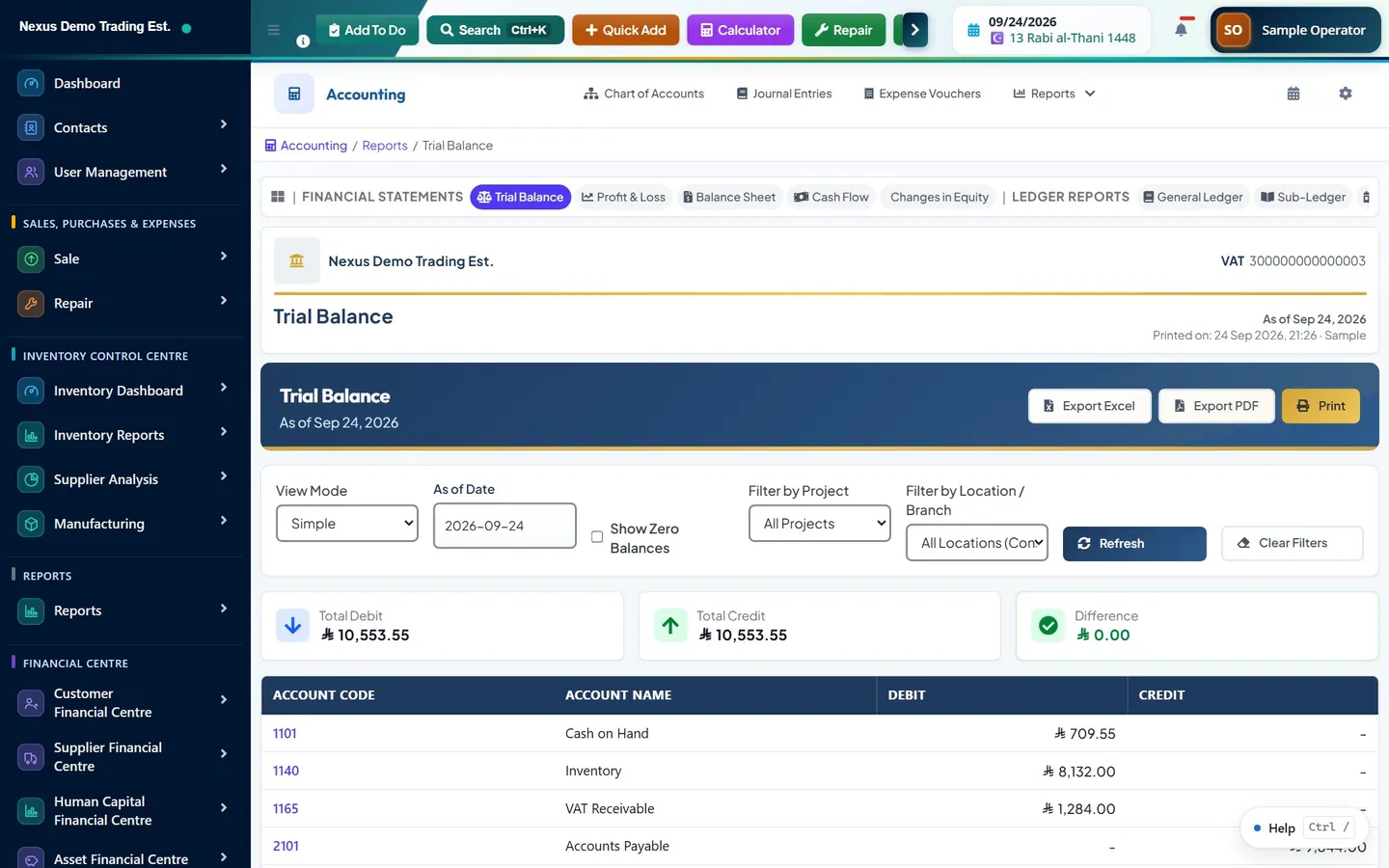
The trial balance screen offers a small set of filters and every one of them changes the meaning of the output, so they deserve reading rather than skipping.
The location filter carries a caveat worth knowing before you rely on it. Account-level opening balances are held at company level, not per branch, so a trial balance filtered to a single location excludes them. A branch view is therefore a view of activity at that branch, not a complete standalone set of books for it. For a full trial balance, leave the location filter on all locations.
There are Refresh and Clear Filters buttons, and Export Excel, Export PDF and Print in the header. Use Clear Filters rather than resetting each control by hand: a filter left set from a previous question is the most common reason a report looks wrong.
- View Mode: Simple shows one balance per account as at a date. Opening / Movement / Closing shows three columns per account across a period, which is the mode to use when you need to explain what changed rather than what the balance is.
- As of Date: shown in Simple mode. The trial balance is cumulative to this date, not a period figure.
- Date Range: replaces As of Date in the Opening / Movement / Closing mode, because a movement needs two ends.
- Show Zero Balances: off by default. Turn it on when you are looking for an account you expect to exist and cannot find, which usually means it exists and is nil.
- Filter by Project: restricts to journal lines tagged to one project.
- Filter by Location / Branch: restricts to entries posted at one location. The default is all locations consolidated.
Reading the trial balance
In Simple mode each posting account appears once, with its code, its name and a balance in either the debit or the credit column. The totals at the foot should be equal. If they are not, the ledger holds an unbalanced entry, which is a data problem to investigate rather than a rounding artefact to ignore.
The Opening / Movement / Closing mode is the more useful of the two for anyone trying to understand a period. Opening is the balance brought forward, movement is what the period's entries did, closing is the result. When a manager asks why an expense account is higher than last year, this is the mode that answers it, because the movement column isolates the period from the accumulated history.
Balances are drawn from posted journal entries, not from draft ones. An entry that has been created but not posted does not appear. That is deliberate and it is worth remembering when a figure you were expecting is missing: check the journal entry list for entries still sitting in draft or awaiting approval.
The balance sheet
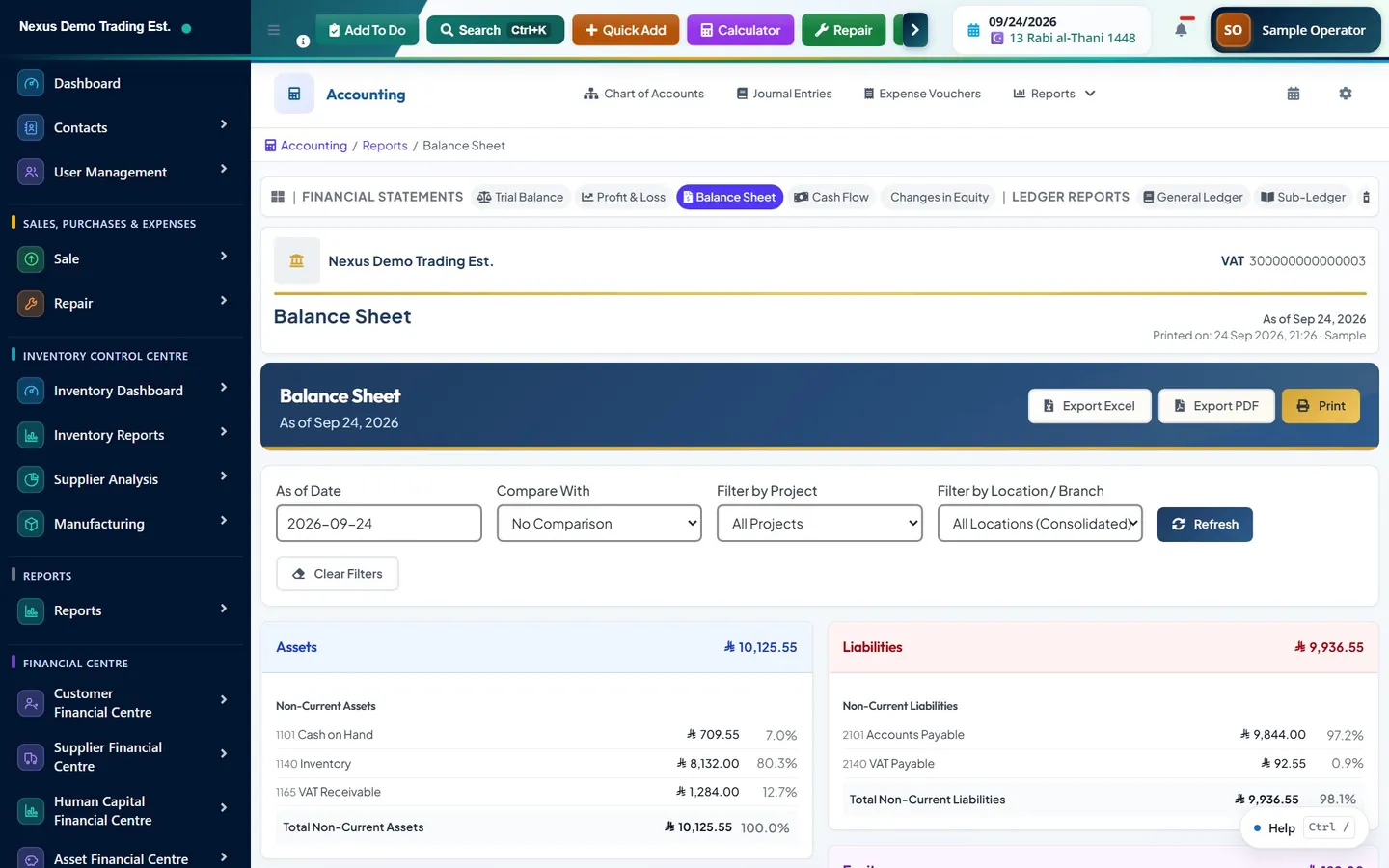
The balance sheet screen takes an As of Date rather than a range, since a balance sheet is a position at a moment. It adds a Compare With selector offering No Comparison, Previous Period or Previous Year, which produces a second column beside the first. A comparative balance sheet is almost always more informative than a single column, because a balance in isolation tells you very little.
It carries the same project and location filters as the trial balance, with the same opening-balance caveat on the location filter. Assets, liabilities and equity are grouped and subtotalled, and accounts are ordered by liquidity where the account type says how liquid they are.
If assets do not equal liabilities plus equity, the report says so and shows the difference rather than quietly presenting a statement that does not balance. That banner is a prompt to go back to the trial balance and find the unbalanced entry, not something to be scrolled past.
Contra accounts are presented with the sign that reflects their role rather than their raw balance, so accumulated depreciation reduces the asset it belongs to instead of appearing as a positive figure in the wrong place.
Tracing a figure down to its documents
This is the part that makes a report useful rather than merely printable. On both the trial balance and the balance sheet, the account code and account name are links. Clicking one opens the General Ledger for that account, with the date range already carried across, and a button to return to the report you came from. Note that it is the code and the name that are clickable, not the amounts.
The general ledger view lists every journal line that hit the account in the period, in date order, with a running balance. Each line shows its journal entry, its description and its reference. From there you can open the journal entry itself, which shows the full double-entry, who created it, when it was posted, and what source document it came from.
That last link is the one that closes the loop. A journal entry created by a sale carries the invoice number as its reference and its description names the sale. So the path from a suspicious figure on the balance sheet to the specific invoice that caused it is: balance sheet, account name, general ledger, journal entry, source reference. Four clicks, no spreadsheet.
- General Ledger (/accounting/reports/general-ledger): every line hitting one account, with a running balance.
- Sub-Ledger (/accounting/reports/sub-ledger): the same idea grouped by customer or supplier.
- Day Book (/accounting/reports/day-book): everything posted on a day, in entry order, with drill-in to each entry.
- Audit Trail (/accounting/reports/audit-trail): who did what to the ledger and when.
When the numbers do not look right
Before assuming the report is wrong, work through the four things that are usually responsible. First, a filter left set from a previous question. Second, entries still in draft that have not been posted. Third, a date range that does not cover the period you have in mind. Fourth, and most common in a system where posting is opt-in, source documents that never reached the ledger at all.
That fourth one deserves expanding. Sales and purchases post to the general ledger only when auto-posting is enabled for the business and the relevant accounts are mapped. If a business has been trading for months with auto-posting off, the sales exist, the stock is right, the customer balances are right, and the general ledger is empty. The trial balance is not wrong in that situation; it is faithfully reporting a ledger nothing was posted into.
The way to test this is to compare a figure that has two sources. Take total sales for a month from the sales reports, and take the revenue movement for the same month from the trial balance in Opening / Movement / Closing mode. If the first has a number and the second does not, the problem is upstream in the posting configuration, not in the report.
The quick operational reports
For completeness, the older pair under Payment Accounts are worth describing so you know what you are looking at if you land on them. Both take just two filters: Business Location and Filter by date, which is a single as-at date rather than a range.
The trial balance there shows three things: supplier due, customer due, and the balance of each payment account, with debit and credit columns and a total. The balance sheet shows liabilities on one side and, on the other, customer due, closing stock and the payment account balances, with a total for each side.
These are derived directly from the sales, purchase and payment records rather than from the ledger, which is exactly why they can be right when the ledger is empty. Treat them as an operational dashboard. They are not financial statements and they will not tie to one.
Other reports worth knowing about
Outside the accounting module, the general Reports section carries a Profit and Loss report, a Stock Report, a Tax Report and a Purchase and Sale Report, all computed from the transaction records rather than from the ledger. They are useful, quick and independent of whether the ledger is configured.
Inside the accounting module, the reports most often needed alongside the financial statements are the AR Aging Report and AP Aging Report, which break receivables and payables into ageing buckets, VAT Analysis, and the Payment Register and Receipt Register. There is also a Data Verification report, which is the right first stop when the trial balance does not balance.
An Activity Log is available to administrators under Reports at /reports/activity-log. It records who created, edited and deleted transactions. It is not a ledger and it is not a substitute for the accounting audit trail, but it answers a question the ledger cannot, which is what happened to the source documents.
What actually feeds the ledger
A trial balance is only as complete as what was posted into it, so it is worth knowing which parts of the business feed the ledger automatically. Each of the following raises an event when it is completed, and the accounting module listens for it and writes a journal entry.
Each of those has its own auto-post switch in the accounting settings and its own account mapping, and each is gated on the fiscal period. That granularity is useful, because it lets a business bring the ledger up in stages rather than all at once, but it also means that a partially configured system produces a partially populated trial balance. When you are diagnosing a gap, work out which of these six sources is missing rather than looking for a single global switch.
Alongside the automatic postings, journal entries can be made by hand at /accounting/journal-entry, for accruals, depreciation, corrections and anything else that has no source document. Those go through a status flow of their own, from draft through approval to posted, and only posted entries appear in the trial balance.
- Sales, when the sale is Final.
- Purchases, when the purchase is Received.
- Payments, both received and made, including when a payment is edited or deleted.
- Expenses, through the expense voucher route.
- Stock adjustments.
- Payroll, when a run is fully approved.
Before a period close
The reports become considerably more useful once fiscal periods are set up, because a period that has been closed cannot be quietly changed afterwards and the trial balance for that period therefore stays as it was reported. Fiscal Periods lives in the Fiscal Authority menu, with actions to close a period, lock it, reopen it and close a whole year.
A close is worth doing in a fixed order. Confirm that everything for the month has been recorded. Check that nothing is still sitting as a draft journal entry. Run the trial balance in Opening / Movement / Closing mode and satisfy yourself that the movements are explicable. Run the balance sheet and confirm it balances. Then close the period, which is what makes those figures durable.
Two further screens help here. Opening Balances is where the ledger's starting position is entered when a business first goes live, and getting it right is what makes the first year's balance sheet meaningful. Data Verification is a diagnostic report that looks for the structural problems that make statements wrong, and it is the correct first stop when the balance sheet reports a difference rather than balancing.
Common questions
Why are there two Trial Balance reports with different numbers?
One is a quick operational summary under Payment Accounts, showing supplier due, customer due and payment account balances derived directly from the sales and purchase records. The other, under Fiscal Authority, is the real double-entry trial balance built from the chart of accounts and posted journal entries. They answer different questions from different data and should not be reconciled to each other.
What does the Opening / Movement / Closing view mode show?
It shows three columns per account across a date range: the balance brought forward, what the period's entries did to it, and the resulting balance. It is the mode to use when you need to explain why an account changed rather than what it currently stands at, because the movement column isolates the period from the accumulated history.
Can I filter the trial balance by branch?
Yes, with the Filter by Location / Branch control, which defaults to all locations consolidated. One caveat matters: account-level opening balances are held at company level, so a trial balance filtered to a single location excludes them. Use it to see activity at a branch, not as a complete standalone set of books.
How do I find out what makes up a figure on the balance sheet?
Click the account name. That opens the General Ledger for that account with the date range carried across, listing every journal line with a running balance and a button to return to the balance sheet. From a line you can open the journal entry, which names the source document. The amounts themselves are not clickable, only the account code and name.
My trial balance is empty even though we have been trading. Why?
Almost always because source documents were never posted to the ledger. Sales and purchases post only when auto-posting is enabled for the business and the relevant accounts are mapped in the accounting settings. Until then the sales, stock and customer balances are all correct and the general ledger is simply empty, so the trial balance faithfully reports nothing.
This guide is general information, not tax, accounting or legal advice. Rules differ from country to country and change over time; confirm the current position with your tax authority or a qualified adviser before acting on anything here.
Ready to run your operation on a single workspace?