
Payroll is a calculation, an approval and a posting
Payroll is the one process in a business where the calculation, the authorisation and the accounting entry are genuinely three separate acts, and where collapsing them is a real control failure rather than a stylistic preference. Someone works out what each person is owed. Someone else, with authority, agrees it. Only then does an expense hit the accounts and money leave the bank.
Skyline Nexus models it that way. A payroll run is calculated and saved as a draft. It then goes through approval, which can have more than one level. The general ledger entry is written when the payroll is fully approved, not when it is calculated. So an unapproved payroll costs nothing and commits nothing, which is exactly the property you want in a process where the numbers are sensitive and the mistakes are expensive.
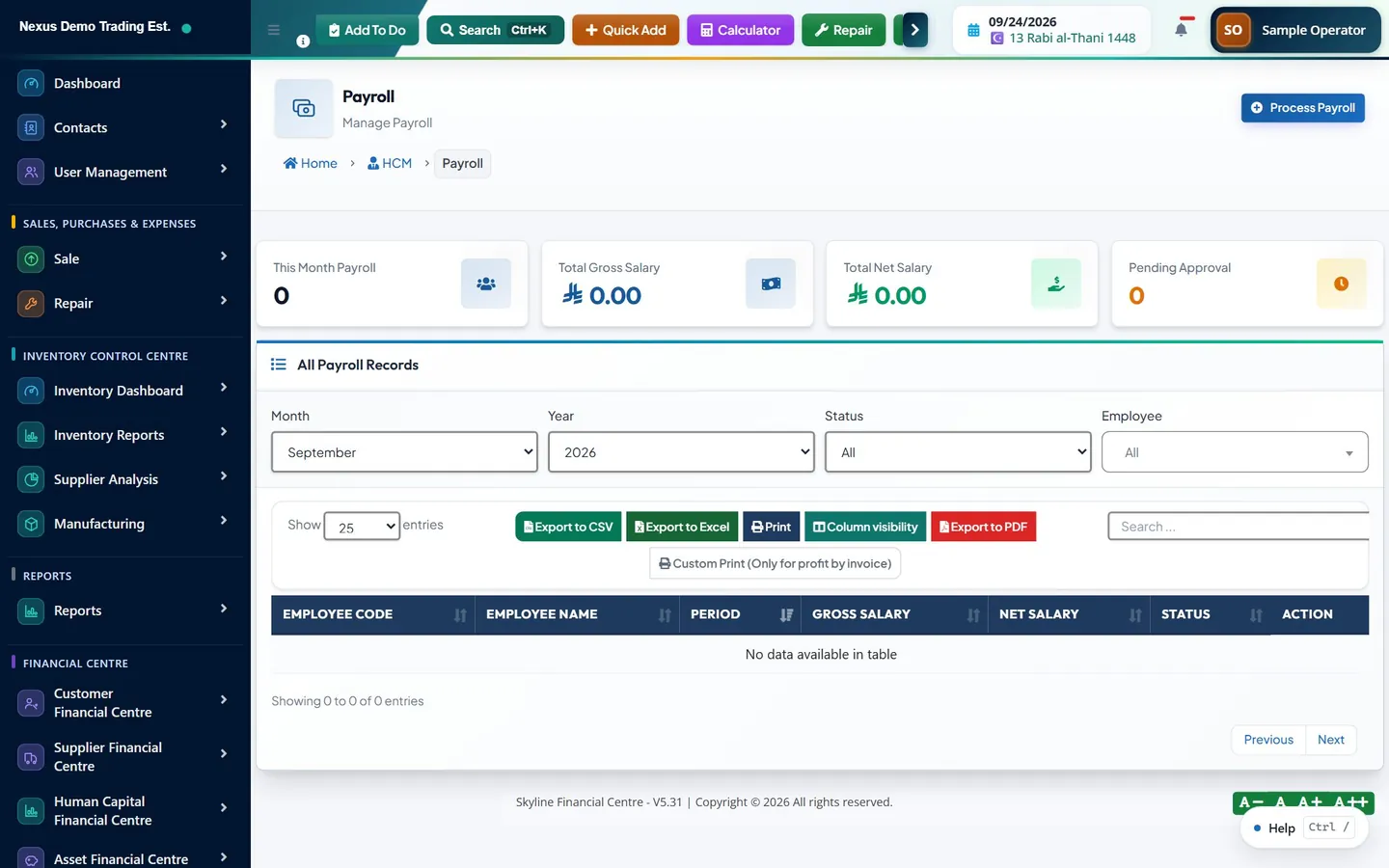
The payroll functions sit in the left menu under the section heading Human Capital Management, in a dropdown labelled HCM, in a sub-dropdown labelled Payroll. Inside it are Payroll and Process Payroll, with Salary Structures, Loans and Advances, Extra Payments and Salary Dues alongside. Attendance and Leave are siblings of the Payroll group, and a separate Reports dropdown carries the payroll register, salary sheet, GOSI and end-of-service reports.
Before the first run: salary structures
A payroll run calculates from what it knows about each employee, so the setup comes first. Salary Structures, at /hrm/salary-structures, is where the shape of pay is defined: the basic salary and the allowances and deductions that sit on top of it. A structure can be created, previewed with a calculation before it is saved, edited and retired.
The preview is worth using rather than skipping. It runs the same calculation the payroll will run and shows the result for a given salary, which is how you find out that an allowance is being computed on the wrong base before it is applied to two hundred people.
Loans and Advances holds amounts lent to employees that are recovered from pay. Extra Payments covers one-off additions and manual overtime that do not belong in the standing structure. Both feed the monthly calculation automatically, so an advance granted mid-month is deducted without anyone having to remember it.
One consequence of this design is worth stating plainly: an employee with no active salary structure cannot be paid. The processing wizard will tell you that there are no employees with a salary structure rather than quietly paying them nothing. If someone is missing from the run, this is the first thing to check, ahead of departments, locations and permissions.
Running the month
Process Payroll, at /hrm/payroll/process, is a three-step wizard: Select Period, Select Employees, and Review and Process.
Step one takes the Month and the Year, and optionally a project override, which defaults to inheriting the project from the employee record. Selecting a period that has already been processed is caught: the system tells you the payroll already exists for that period and names how many employees are affected, and asks whether to continue rather than quietly creating a duplicate run.
Step two lists the employees available for that period with their code, name, department, gross salary and status, and a select-all control. Selecting a subset is legitimate and common, for instance where one department is paid on a different cycle, but it is also the easiest place to leave someone out by accident, so it is worth counting the selected employees against the headcount you expect.
Reviewing before you commit
Step three is the one that earns its place. It shows four summary figures across the top: the number of selected employees, total gross, total deductions and total net. Beneath them is a line per employee showing gross salary, overtime, the employee GOSI contribution, loan deductions and net salary.
This is the screen to check properly, because it is the last point at which a mistake is cheap. The four totals are the fastest check available: gross should be close to last month unless something changed, and if it is not, the reason should be one you can name. A total net that has moved without a total gross that moved means a deduction has changed, which is usually a loan starting or finishing and occasionally something wrong.
Processing from this screen creates the payroll records as drafts. Nothing has been approved, nothing has been paid, and nothing has reached the accounts.
Approval
A payroll record moves through statuses: draft, pending approval, approved, rejected, paid and cancelled. Approval can be configured with more than one level, and the system tracks which level each payroll has reached. Approving at one level moves it forward; it becomes fully approved only when every configured level has signed, and there is a reject action for the case where it should not proceed.
There is a bulk approve action for approving several payrolls at once, which matters because each employee's payroll is its own record. Deleting is only permitted while a payroll is still a draft, which is the right restriction: an approved payroll is a decision someone made, and decisions are reversed rather than erased.
Payroll is the one place in the system with a genuine cancellation rather than a deletion. Cancelling an approved payroll reverses its payments, reverses its ledger entries, reverses the associated account transactions and un-settles any loan instalments it had recovered, all inside one database transaction so it either all happens or none of it does. There is also a correction path for the case where the payroll was broadly right but one figure was not.
The moment of full approval is the moment the accounting entry is written. Until then the payroll exists only in the payroll module. That single design choice is what makes the approval meaningful rather than ceremonial.
What payroll posts to the ledger
On full approval, an event is raised. Two things then happen. The payroll module creates an expense transaction in the main ledger of business documents, dated to the end of the payroll month, carrying the gross as the pre-tax total and the net as the amount payable. Separately the accounting module writes a journal entry. The shape of that entry is what you would expect from a payroll accrual: salary expense is debited with the gross, salaries payable is credited with the net, and the amounts withheld or accrued are credited to their own liability accounts.
Where cost centres or departments are set up, the expense is split across them, so payroll cost by department comes out of the ledger rather than out of a spreadsheet. Where a project is assigned, the entry carries it, and payroll cost appears in project reporting.
The same three gates apply as everywhere else in the accounting module. Auto-post payroll must be switched on in the accounting settings. The salary expense and salaries payable accounts must be mapped, either in the accounting settings or in the human capital settings. And the fiscal period covering the payroll date must be open: a payroll dated into a closed period is rejected rather than backdated, and the rejection names the period.
- Salary expense, debited with gross pay.
- Salaries payable, credited with net pay, cleared when the payment is made.
- GOSI payable, credited with the social insurance contribution, with a matching employer expense where the employer contributes.
- End-of-service provision, credited with the period's accrual, against an end-of-service expense.
Paying, payslips and bank files
An approved payroll is ready for payment; the system says so in as many words when the last approval lands. Payslips can be downloaded or printed per payroll record, and each carries a verification code so a payslip presented to a bank or a landlord can be checked against the system rather than taken on trust. A bank transfer file can be exported per bank for wage protection filing where that applies. Payments are recorded against the payroll, tracked as unpaid, partial or full, and can be reversed individually if one goes wrong.
Salary Dues shows what is owed but not yet paid, which is the operational counterpart of the salaries payable balance in the ledger. Those two should agree, and if they do not, the usual cause is a payment recorded in one place and not the other.
There is also a correction path for payrolls that were approved with an error in them. A correction is recorded as a difference rather than by editing the original, and the ledger handles a negative correction properly, crediting salary expense to reduce what was over-booked. Corrections are kept as a history against the payroll they correct, and a correction that was itself wrong can be voided. This is the same principle as everywhere else in the system: correct by addition, not by amendment.
A word on why that matters more in payroll than almost anywhere else. A payslip is a document an employee has already seen, and in many places has a legal right to. Quietly editing last month's figures so that this month's total looks right leaves the employee holding a payslip that no longer matches the system, which is precisely the kind of discrepancy that turns a small administrative error into a dispute. A visible correction with a reason attached is both better accounting and better employment practice.
Attendance, leave and what they do to pay
Payroll does not calculate in isolation. Each payroll record stores the working days in the period, the days actually worked, the days absent, and the paid and unpaid leave days, and those figures drive deductions. Unpaid leave and absence produce an absence deduction. Lateness produces a late deduction, and the record keeps both the total late minutes and the number of separate late incidents, because most late-deduction policies are written in terms of incidents rather than minutes.
Those figures come from the attendance and leave functions, which sit alongside payroll in the same menu. Attendance can be entered manually, imported from a file, or synchronised from a device. Leave runs through leave types, leave requests with an approval step of their own, and leave balances. If attendance for the month has not been processed before payroll is run, the deductions will be calculated against whatever the system currently believes, which is usually nothing.
The practical consequence is an ordering rule: close attendance for the month, approve or reject the outstanding leave requests, and only then run payroll. Running payroll first and fixing attendance afterwards means recalculating or correcting every affected record, which is far more work than doing it in order.
What a payroll record holds
It helps to know what is actually stored per employee per month, because it tells you what you can report on later without reconstructing anything. Earnings are broken out rather than lumped together: basic salary, housing, transport, food, education, mobile, utility and special allowances, other allowances, overtime, bonus, commission and other earnings, summing to gross salary.
Deductions are equally granular: the employee social insurance contribution, health insurance, loan and advance recoveries, absence and late deductions, tax and other deductions, summing to total deductions, with net salary as the result. The employer social insurance contribution is stored separately, as is the end-of-service accrual for the period, because both are employer costs rather than employee deductions and belong on different lines of the ledger.
That structure is why the payroll reports can answer questions the general ledger cannot. A GOSI report, an end-of-service report, an overtime report, a loans report and a deductions report all exist because the underlying figures were stored separately rather than being netted into one number at calculation time.
Practical order of operations
- Set up salary structures and check them with the preview calculation before applying them.
- Close attendance for the month and clear the outstanding leave requests.
- Record loans, advances and any extra payments or manual overtime for the month.
- Run the wizard: select the period, select the employees, and count them against your headcount.
- Check the four totals on the review screen against last month before processing.
- Process, then route for approval. Nothing hits the accounts until approval is complete.
- After approval, confirm the journal entry posted. If it did not, check auto-posting, the account mapping and the fiscal period.
- Export the bank file, distribute payslips, and record the payment so salaries payable clears.
Why social insurance and end of service are accrued monthly
Two of the figures on a payroll record are not deductions from pay at all, and treating them as though they were is a common source of understated liabilities. The employer's share of social insurance is an employer cost, not something taken from the employee. The end-of-service accrual is a liability building up month by month against a payment that will be made, potentially years later, when the employee leaves.
Both are calculated and stored per employee per month, and both post to their own accounts: an expense for the period and a corresponding liability on the balance sheet. That is the whole point of accruing them monthly rather than recognising them when they are paid. A business that only records social insurance when it settles the invoice, and only records end of service when someone resigns, reports profits that are too high every month and then takes a large and apparently unexplained hit whenever the bill arrives.
The system also handles the case where the employer pays the employee's share as well as its own, which is recorded distinctly rather than being folded into gross pay, because the two have different consequences for the payslip and for the contribution filing. Dedicated reports cover social insurance and end of service so the accrued balances can be checked against the ledger accounts they post to.
None of this removes the need for judgement about rates, eligibility and the basis of calculation, which are matters of local regulation and of your own policy. What the system does is apply the policy you configure consistently every month, and leave the figures where an accountant can find them.
Common questions
When does payroll post to the general ledger?
When the payroll is fully approved, not when it is calculated. Processing creates draft payroll records that commit nothing; the accounting entry is written at the moment the final approval level signs. That is what makes the approval step meaningful rather than ceremonial.
What does the payroll journal entry contain?
Salary expense is debited with gross pay, salaries payable is credited with net pay, and the amounts withheld or accrued are credited to their own liability accounts, including GOSI payable and the end-of-service provision. Where cost centres or departments are configured, the expense is split across them.
Can I delete a payroll after it has been approved?
No. Deletion is only permitted while a payroll is still a draft. An approved payroll is either cancelled, which reverses its payments, its ledger entries and any loan instalments it recovered in one operation, or corrected, which records the difference rather than amending the original. Both leave the original record in place.
What happens if I try to process payroll twice for the same month?
The system checks for an existing payroll for that period, tells you it already exists, names how many employees are affected, and asks whether to continue. It does not silently create a duplicate run.
My payroll was approved but nothing appeared in the accounts. Why?
Check three things in order. Auto-posting for payroll must be enabled in the accounting settings. The salary expense and salaries payable accounts must be mapped. And the fiscal period covering the payroll date must be open, because a payroll dated into a closed period is rejected rather than backdated.
Why is an employee missing from the payroll run?
The most common cause is that the employee has no active salary structure, since pay is calculated from the structure rather than from a salary field on the employee record. The wizard says so rather than paying them nothing. The other common cause is that a payroll already exists for that employee for that month, in which case they are skipped.
This guide is general information, not tax, accounting or legal advice. Rules differ from country to country and change over time; confirm the current position with your tax authority or a qualified adviser before acting on anything here.
Ready to run your operation on a single workspace?